
Answer in brief
A USB-C cable can support charging power that suits your laptop yet provide a limited data rate. Power, data and video are separate capabilities. Check the exact cable specification alongside both ports and devices: a faster cable cannot add support that the host or connected equipment lacks.
Why can the same USB-C plug do different jobs?
A USB-C cable can charge a device suitably while transferring files slowly because power and data capabilities are separate. The same connector shape does not tell you the data rate or whether video is supported. Before replacing a cable, name the task: charging a laptop, copying a photo archive or connecting a monitor. Then compare the documented cable capabilities with the ports and equipment at both ends.
Separate those tasks even when you want one cable to perform several. A desk setup may need power and display output together, while a travel cable may only need dependable charging. “Works with USB-C” is too broad to compare those requirements. Look for the documented capability of the actual cable, not a family name shared by a range whose lengths and versions can differ.
Our comparison uses generic equipment and no transfer benchmark. The aim is to make a connection explainable from its parts. Begin by identifying the exact host, its port, the connected device and the cable. If a dock or adapter is involved, include it rather than treating it as invisible. A different cable can address a cable limitation, but cannot create a capability that the rest of the chain lacks.
Does a high power rating mean faster data?
A cable's supported power and its data capability are separate. A charging arrangement also involves the power adapter and the receiving device. The cable's rating does not instruct a phone to consume that amount or guarantee that a laptop reaches its fastest charging mode. Compare the documented requirements of the device and charger instead of assuming the largest number on the packaging solves every power problem.
USB-IF's cable guidance distinguishes power markings and data-rate markings in its certification programme. That helps you read specifications, but is not proof that every cable for sale is certified or accurately labelled. The relevant claim should belong to the exact product and version you are buying. Keep the product listing or documentation so a vague package description does not become the only record.
Think of a charging-only use case first. If you rarely move files over the cable and do not connect a display, higher data capability may not serve your routine. Conversely, someone regularly copying large files needs to check more than charging power. Avoid treating a high-power cable as inferior just because it was not designed for your second task; the mismatch can be in the purchase brief rather than a defective product.
What else limits file-transfer speed?
For an external drive, identify the port used on the computer and the drive's documented interface. Include the cable supplied with the drive as a reference if available and appropriate. A device can present the same connector on a port with a different supported protocol. Moving the cable to another socket may therefore change which capabilities are available without changing the drive or buying any new equipment.
Apple's cable comparison, dated 10 June 2026, describes its referenced USB-C Charge Cable as limited to USB 2.0 data at up to 480 Mbps and without video support. This is a specific documented example of charging and data differing. It is not a statement that every Apple cable or every USB-C charging cable has those capabilities, and the rated data figure is not a measured file-copy result.
Real copying also depends on the source, destination and workload. A folder of many small files is not the same task as one large file, and an active computer may be doing other work. For troubleshooting, keep the same files and device pair when changing one connection element. Do not infer a cable specification from a single slow copy if the drive or another part of the setup could explain it.
Why does the monitor stay blank while the laptop charges?
A laptop charging through a socket does not by itself prove that the socket can send an image to a monitor. Check the host's documented display output, the monitor's accepted input and the cable or adapter required between them. The names of video-capable USB-C arrangements matter because not every product implements the same route. Follow the equipment documentation rather than assuming a picture will appear whenever the plug fits.
A dock adds another set of conditions. Identify its supported host connection and display arrangement, and check which cable its manufacturer expects. A convenient multiport device cannot be treated as a simple extension of every port's capabilities. If it requires a particular host feature or software arrangement, a more expensive cable alone will not satisfy that requirement. Keep software and physical compatibility separate when diagnosing the blank screen.
Use the monitor's actual input selection and the host's display settings as part of the check. A dark screen can arise from selecting the wrong input as well as an unsupported connection. This is a method for narrowing the question, not a universal repair instruction. If you cannot establish a supported video route from the published specifications, ask the manufacturer about the exact combination before ordering replacements.
How do you check one part of the connection at a time?
Write down the present chain in order: computer and named port, cable, any adapter or dock, then device. Record the intended task and the observed problem separately. “Drive mounts but copying is slow” provides a different starting point from “drive does not appear.” Likewise, “monitor is blank while charging works” tells you less about data transfer than about the distinction between the power and display routes.
If you have a known compatible reference cable, try it with the same port and device. Keep the workload constant where possible. Next, test a different documented compatible port or remove an optional intermediary, again changing one thing at a time. These are comparisons for your own setup, not published performance evidence. They help identify which change matters without assigning every symptom to the most visible object.
Inspect ordinary usability as well. A cable that is inconveniently short can encourage a strained placement; a connector that cannot be seated properly because of an accessory needs attention before protocol comparisons are useful. Follow the manufacturer's handling guidance and stop using visibly damaged equipment. Do not turn a partly functioning connection into a theory about hidden copper wiring based only on its appearance.
Which cable specification does your task need?
The decision table begins with tasks because a universal “best cable” obscures tradeoffs. A charging cable carried for a phone does not have to meet the same brief as a workstation cable for storage and displays. If you want one spare for several devices, list the capabilities each task requires. Then verify which of those the actual cable, not merely the product family, supports.
Length, flexibility and the supplied connection should remain part of the choice. Documented protocol support belongs to a specific product configuration. Do not assume that a longer version, replacement from another seller or visually similar cable preserves every property. Read the exact model's specification. Where the manufacturer distinguishes versions, keep that distinction in your shopping notes instead of compressing them into the word “USB-C.”
Also decide what evidence would justify a replacement. If a known compatible cable restores your required task while other elements are unchanged, that is more informative than a promotional maximum. If both cables behave similarly, revisit the port, device and intermediary. The aim is a purchasing decision supported by the connection you need, not a new cable bought solely because the previous number on the packaging no longer sounds impressive.
| Task | Cable capability to verify | Other parts to verify | What not to infer |
|---|---|---|---|
| Charge a phone | Documented charging compatibility | Adapter and phone requirements | Rated power is not compulsory power draw |
| Charge a laptop | Suitable documented power capacity | Adapter, laptop and charging port | A higher cable rating cannot upgrade the adapter |
| Copy to an external drive | Supported data protocol/rate | Host port, drive and workload | Charging success does not establish fast data |
| Connect a monitor | Supported video connection | Host output and monitor input | USB-C shape alone does not prove video |
| Use a dock | Specified host-to-dock cable support | Dock capabilities and host requirements | A cable cannot supply a missing host feature |
| Choose a multi-device spare | All required tasks on the exact version | Each device pair and any adapter | Similar lengths or names do not prove identical capabilities |
What can the cable illustration actually show?
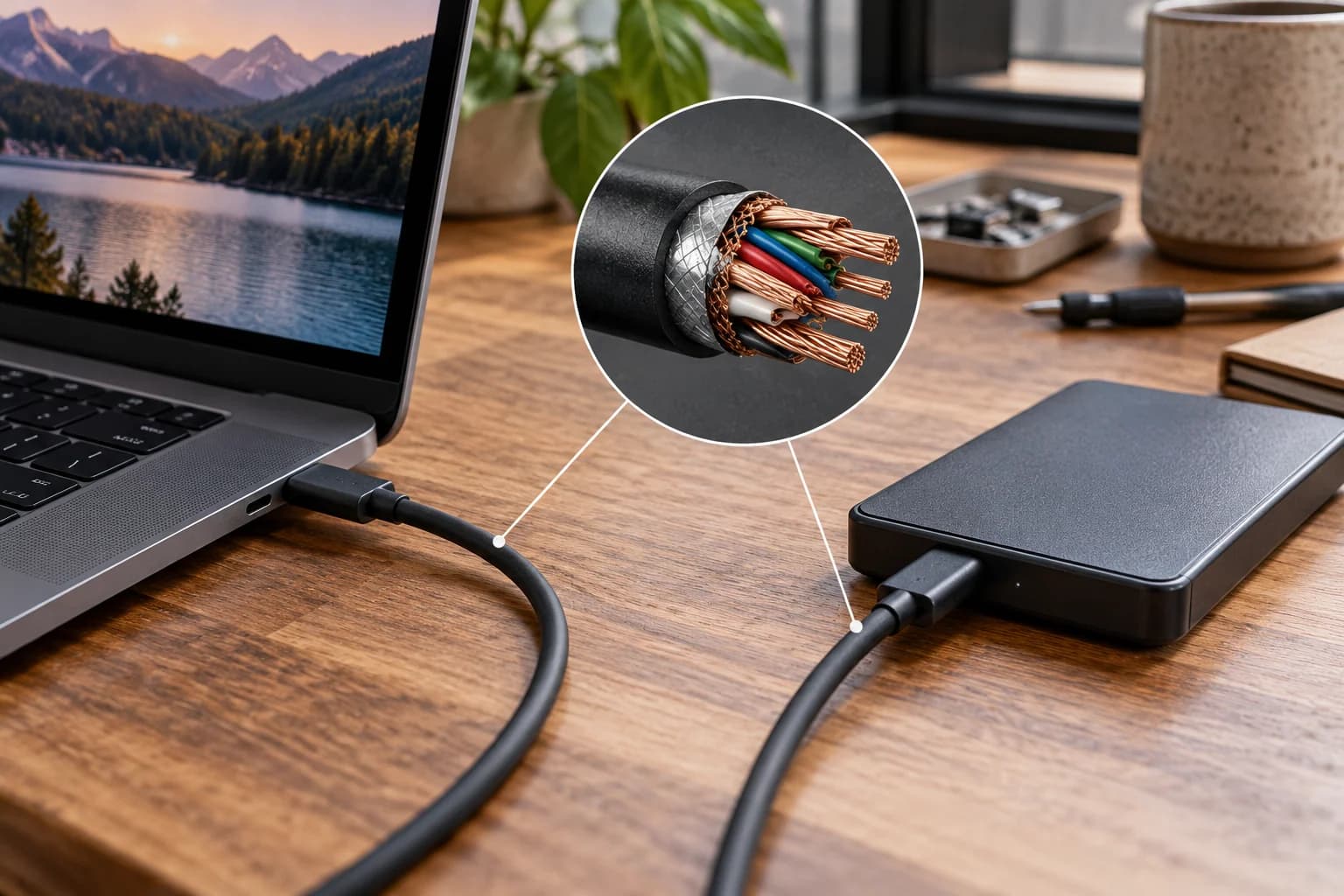
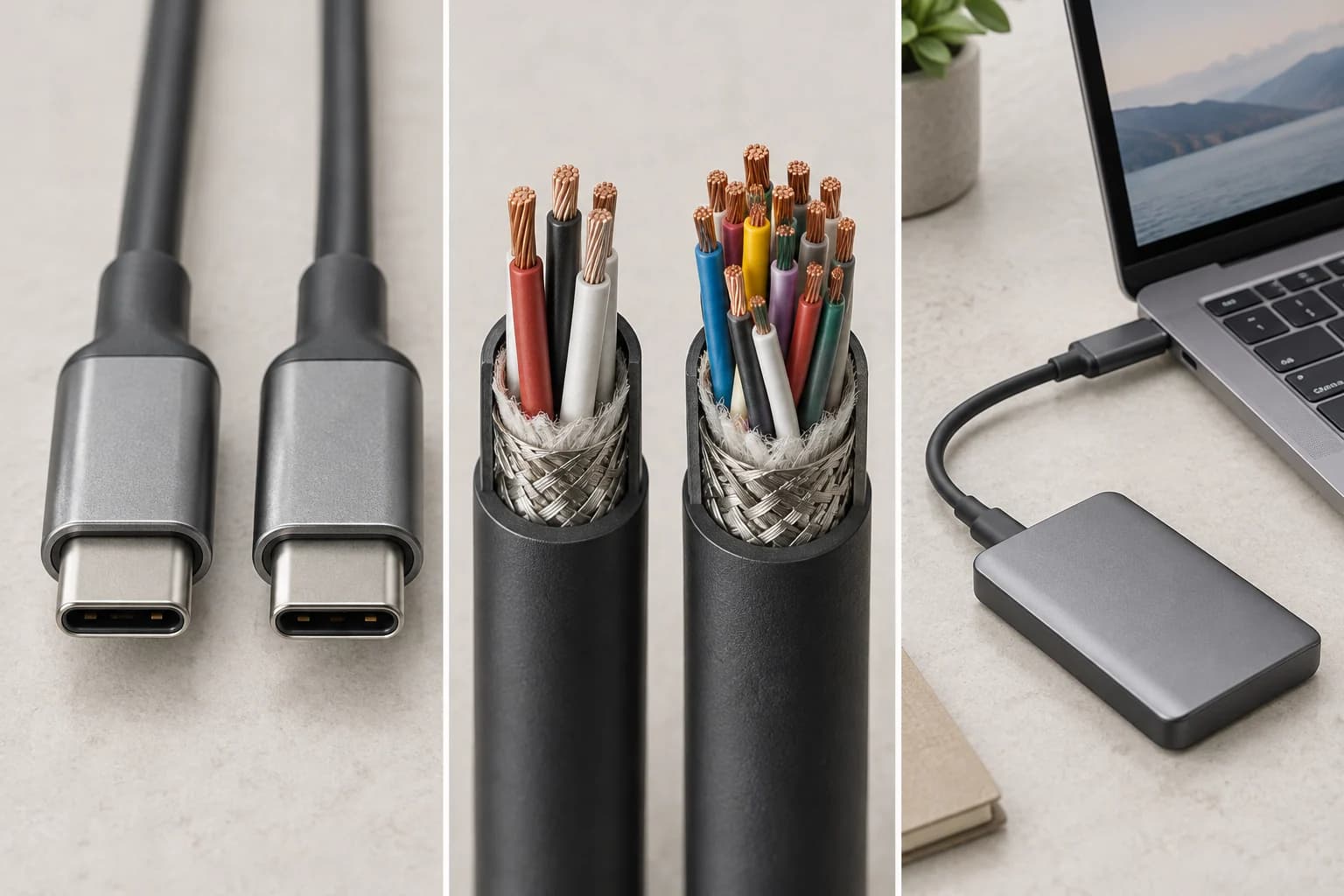
Our AI-generated cover shows similar generic cables with a laptop and portable drive. Its copper-filament inset illustrates that externally similar objects can differ inside. It is not an exact reconstruction of a connector, a certified wiring diagram or a teardown of any product. You cannot count visible filaments in the image and infer a real cable's power, transfer rate or video support.
For a visual comparison of actual products, record the exact model, documented capabilities and connection used. If you later conduct a copy test, state the files, ports, devices and method, and keep rated capability distinct from the observed result. A charging indicator alone is not evidence of fast data or video, just as a working monitor does not establish every storage task's maximum possible rate.
Give each retained cable a clear purpose in your own inventory. Keep documentation accessible for the one used with the drive or display, and identify a compatible spare before travel. The most useful result of this comparison is being able to explain why a cable belongs in a particular setup. Once that explanation includes both ends and any intermediary, similar-looking plugs become much less confusing without invented performance claims.
Questions and answers
What is the difference between a USB-C charging cable and a data cable?
The names alone do not establish the capabilities. A charging-oriented USB-C cable may carry data at a rate below what your drive needs. Check charging power, data specification and video support separately. The documented Apple cable example shows one configuration, not a rule that every charging cable has no data connection.
Does a higher wattage cable copy files faster?
Power capacity and data capability answer different questions. Copying requires compatible host, port, cable and storage device, while the workload also matters. A power number cannot establish the data route. Check the documented data specification and compare with a compatible reference connection if you are troubleshooting.
Why does USB-C charge the laptop but not connect the monitor?
Power and video are separate paths. Check the laptop port's display support, monitor input, cable and any dock or adapter. Also check input selection and display settings. Successful charging alone does not establish a supported video connection, and replacing a cable cannot add a missing host feature.
Does the copper inset show a real cable’s internal wiring?
No. It is part of an AI-generated conceptual illustration and does not show verified internal anatomy. Use the manufacturer's specification and relevant certification information for real products. No teardown, charging measurement or transfer benchmark was performed for the illustration or this comparison.