
Answer in brief
A Wi-Fi 7 upgrade is worth considering when its supported features address a known limit in your network. First separate broadband problems from weak in-home Wi-Fi and check placement, client compatibility and mesh backhaul. A new generation does not remove walls or guarantee a better connection for an older device.
Is Wi-Fi 7 the fix for your connection problem?
Whether Wi-Fi 7 is worth upgrading to in 2026 depends on the problem you are trying to fix. Slow Wi-Fi in a distant room can involve router position, the wireless route and the client, while an internet-service limit can affect use elsewhere too. Compare the same device and activity near the router and in the problem room. Then check which compatible feature or placement change addresses the limit you found.
Separate unreliable connection from a task that takes longer than expected. A call that repeatedly disconnects is a different complaint from a large download completing slowly. A remote service can also be part of the task, so one website's behaviour should not become a verdict on the entire home network. Record what you observe without inventing a signal strength or throughput figure you have not measured.
For the comparison, imagine an existing Wi-Fi 6E setup with a laptop behind several walls. The reader's choice is whether to change placement, adjust the network arrangement or buy Wi-Fi 7 equipment. We have not tested that fictional flat. Its purpose is to make the dependencies visible and to show which questions a purchase should answer before a generation label becomes the decision.
Is the limit broadband or Wi-Fi inside the flat?
Ofcom's consumer guidance distinguishes broadband supply from home Wi-Fi. An improved wireless link cannot make an insufficient internet service deliver beyond its own capability. That is a useful distinction, not an instruction to buy a faster subscription whenever a laptop is slow. Identify whether the limitation appears across suitable connections or mainly on the particular wireless route.
Where supported and practical, compare a known suitable wired connection with wireless use near the router and in the problem room. Keep device and activity as similar as possible, and account for any adapter used. A different computer running a different task is not an equivalent comparison. You do not need to publish a benchmark; you need enough consistent observations to decide which part deserves attention.
If problems persist close to the router and through a suitable reference connection, moving the router may not address them. Look at the provider's status and equipment guidance and consider the task's remote endpoint. If the problem mainly follows distance or a particular room, placement and coverage become more relevant. Treat this as narrowing the diagnosis rather than a guaranteed rule for every fault.
Where should you place the router?
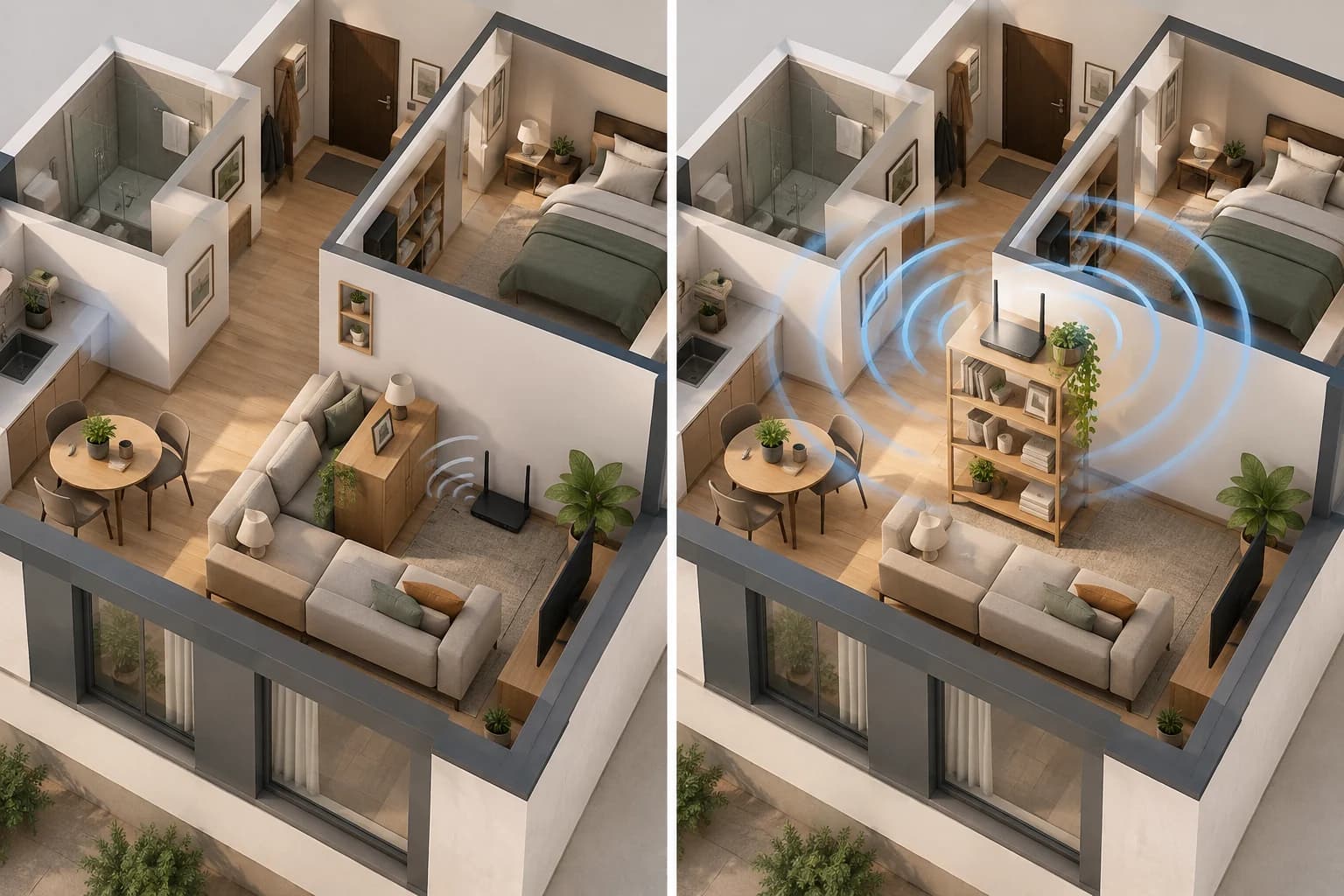
A router hidden low behind furniture can be visually unobtrusive while giving its wireless connection an inconvenient route. Consider a more open, elevated and central position where cabling and the equipment instructions allow it. The important comparison is what sits between the router and the regularly used device. Do not assume the nicest-looking shelf is the best position if it adds obstructions to the room that needs service.
Map the actual workstation, not only the floor-plan centre. A central location can be a useful starting point, but households use rooms unevenly. Check the seat used for calls, the desk behind an internal wall and any place where a device stays for long periods. A diagram that distributes decorative signal rings equally does not establish useful coverage at those positions.
Try an accessible position temporarily without straining cables or obstructing equipment ventilation. Repeat the same activity from the same device and seat. Record what changed and what did not. This can justify a placement intervention even when no hardware is replaced, or reveal that placement alone is insufficient. Neither outcome says every flat behaves the same way, and a visual change in the illustration is not an observed network improvement.
Which Wi-Fi 7 features can your devices use?
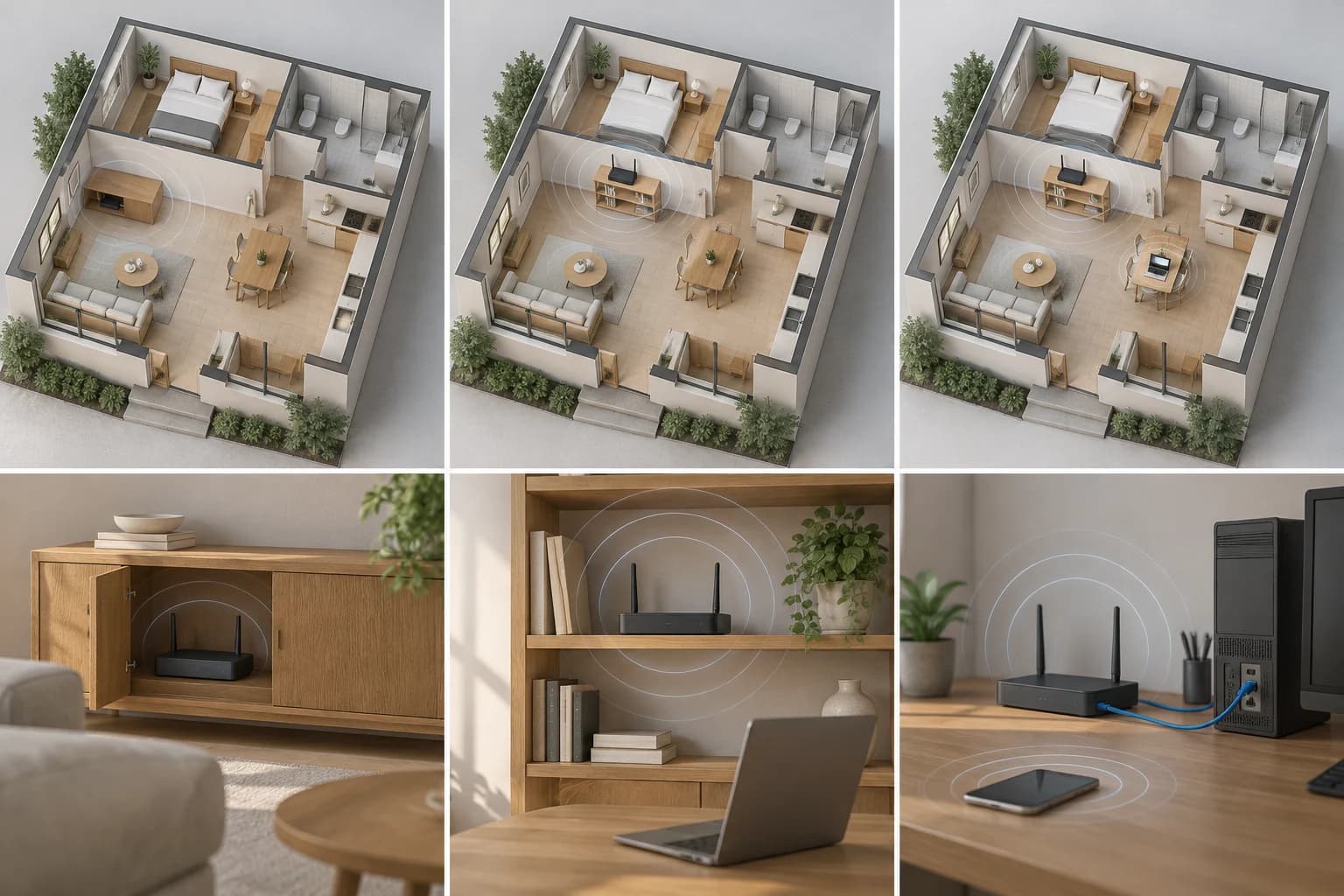
The Wi-Fi Alliance's certification launch was announced on 8 January 2024. It identifies Multi-Link Operation and wider channels, including 320 MHz where the relevant 6 GHz spectrum is available. These are capabilities of a supported arrangement, not a 2026 discovery or guaranteed household result. The practical question is whether the actual router and your client can use the features you are buying.
Check the laptop or phone's documented wireless support as well as the router's. A new access point does not turn every older client into a device with all newer features. Also check what the equipment's software and configuration enable. Similar product names can conceal different implementations, and a capability listed for the standard does not describe every router-client combination or operating mode.
Match that information to your activity. Large local transfers, several simultaneous users and interactive applications may make different demands. Avoid using a theoretical maximum as the answer to a problem caused by a wall or an insufficient upstream connection. An upgrade becomes a reasoned option when you can name a supported feature relevant to the limitation, rather than only a newer number or a claim of “future-proofing.”
Does your mesh have a usable backhaul?
Adding another access point can change where the device connects, but that point still needs a route back to the rest of the network. That connection is the backhaul. If it is wireless, its own placement and conditions matter. A node beside the laptop may provide a nearby access point without automatically creating a strong link between that node and the main router.
Draw each segment separately: internet connection, main router, any node and the client. Note which links are wired and which are wireless. This helps avoid treating a mesh kit as a single object that bypasses every obstruction. A system's usefulness depends on the actual layout and supported setup. Follow the manufacturer's installation guidance rather than placing a node solely in the room where the problem is most visible.
A wired backhaul may be an option where the property and equipment allow it, but it involves cabling and installation considerations. Compare those with moving an existing device or buying another system. You do not need a universal ranking of router, mesh and cable. You need to know which route each proposal changes, which routes remain and what practical work that proposal requires in your home.
Should you move the router or replace it?
The table compares reasons for intervention rather than ranking technologies. A client behind a difficult route, a client without the desired feature and a household with an upstream limitation are different cases. They can coexist. Solving one may reveal another, so do not interpret a partial improvement as proof that the remaining components were irrelevant or that a second upgrade is automatically required.
Start with the least disruptive relevant check. That might be a temporary position, identifying a supported port for a reference connection or examining a client's capability. A purchase belongs after you know what it changes. Keep installation requirements and return conditions in mind when comparing equipment, because a feature that cannot be used in your current layout offers less practical value than its headline suggests.
There is no published speed test or purchase-price ranking here. The diagnostic advantage is a written explanation: “This proposal changes the route to the desk” or “this client can use the feature this router offers.” That statement can be checked against documentation and a reversible trial. “This box is newer” cannot explain why the specific call, download or room should behave differently after installation.
| Observed pattern | First useful check | Possible intervention | What remains conditional |
|---|---|---|---|
| Problem mainly in a distant room | Same device near and far | More useful placement or coverage arrangement | Walls and the real route |
| Slow through suitable reference connections | Provider status and task endpoint | Investigate service or equipment supply | A new radio cannot create upstream capacity |
| New feature advertised but unavailable | Client and router documentation | Compatible equipment/configuration if relevant | The client must support the feature |
| Mesh node nearby but task still poor | Node-to-router route | Reposition node or consider suitable backhaul | The second link can remain limiting |
| Several simultaneous activities conflict | Actual household task pattern | Capacity planning and supported features | No universal generation-based improvement |
| Placement change has unclear effect | Consistent device, seat and activity | Repeat a reversible comparison | Illustrations are not coverage measurements |
Compare the same task without inventing a signal map
Keep the device, seat and task consistent when comparing positions or equipment. Note other household use and any change in software or configuration. If measuring, record method and conditions and distinguish the observed result from rated capability. A one-off improvement can be informative without becoming a reliable prediction for every evening. Repetition is useful when uncertainty remains, not as an excuse to fabricate a precise average.
Our AI-generated cover shows matching apartment concepts: a generic router low behind furniture and a router on an elevated open shelf. It illustrates obstruction and access to a location. It contains no real signal measurements, heatmap, numerical speed or promise that the second position wins. Its role is to clarify the intervention, while the article explains the conditions that a real comparison must retain.
The final choice may be repositioning, a different network route, Wi-Fi 7 equipment or no purchase until another cause is understood. Keep the same criterion for each: the proposal must address an identified limitation and work with the devices and property you actually have. That produces a more useful home-network decision than replacing a generation label while the room, client or upstream dependency remains unexplained.
Questions and answers
Is it worth buying a Wi-Fi 7 router in 2026 for a weak signal?
A weak signal alone is not a reason to expect Wi-Fi 7 to fix the problem. Check router position, walls, client support and any mesh backhaul first. Consider replacement when a documented capability addresses the limit you found and your equipment can use it. This comparison measures no apartment speeds or coverage.
Will older devices use all the features of a Wi-Fi 7 router?
The device needs appropriate support for the feature, along with compatible router implementation and configuration. An access point does not upgrade an older client's radio. Check the exact equipment documentation rather than assuming a standard's complete feature list describes every connected device.
Where should I put a mesh node for a distant room?
The laptop-to-node link is only part of the route. The node also needs a suitable connection to the main network. Follow the system's installation guidance and compare both segments. A nearby node alone does not establish a good backhaul or guarantee the task improves.
Does the cover prove that the new router position is faster?
No. Both panels are an AI-generated conceptual illustration showing different router positions. There is no signal heatmap or measured speed. For your flat, compare the same device and activity under documented conditions and record limitations before concluding that a position or upgrade works better.